 TabPods
One click to the right account
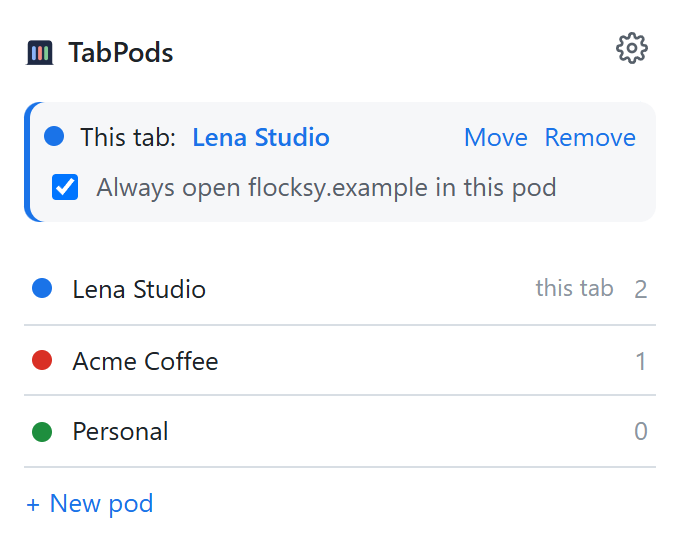
The TabPods button lists your pods and shows which one the current tab is in. Click a pod to open a new tab in it, or move the current tab there.
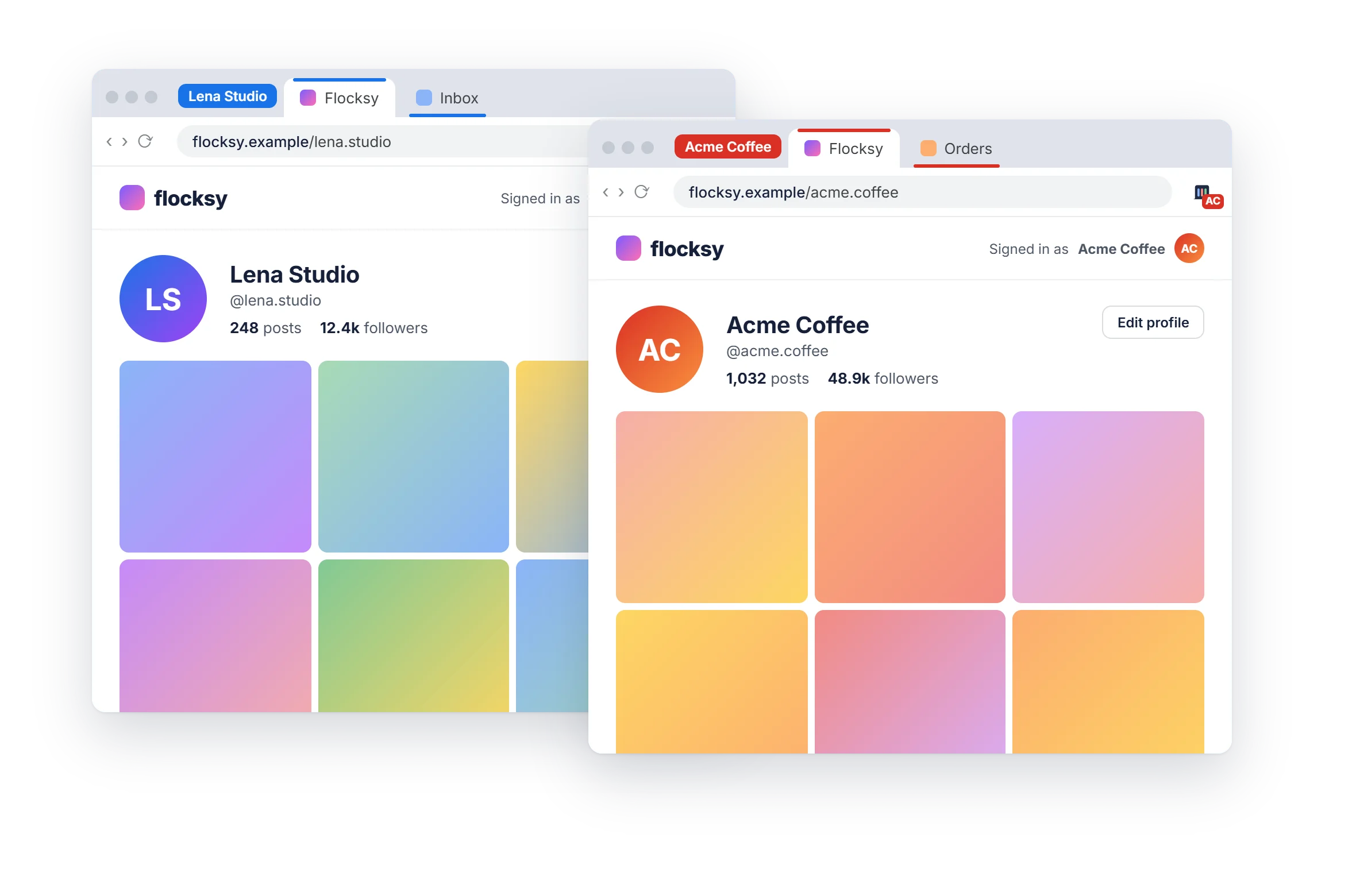
TabPods keeps a separate set of logins in each pod. Sign in to Instagram, Gmail or any other site once per pod, and every account stays signed in, each in its own colored tab group.
Free for 2 pods. No account to create.
How it works
Made for social media managers, agencies, online sellers and anyone who switches between accounts all day.
Name it after an account or a client, like "Work" or "Client A". Each pod gets its own color.
From the TabPods button, the right-click menu or a keyboard shortcut. Its tabs sit in a colored group named after the pod.
Sign in as usual. The pod remembers it, even after a restart, and your other tabs and pods don't see it.
The TabPods button lists your pods and shows which one the current tab is in. Click a pod to open a new tab in it, or move the current tab there.
Right-click a link and pick a pod. Pages and pop-ups opened from a pod tab stay in that pod, so a sign-in never lands in the wrong account.
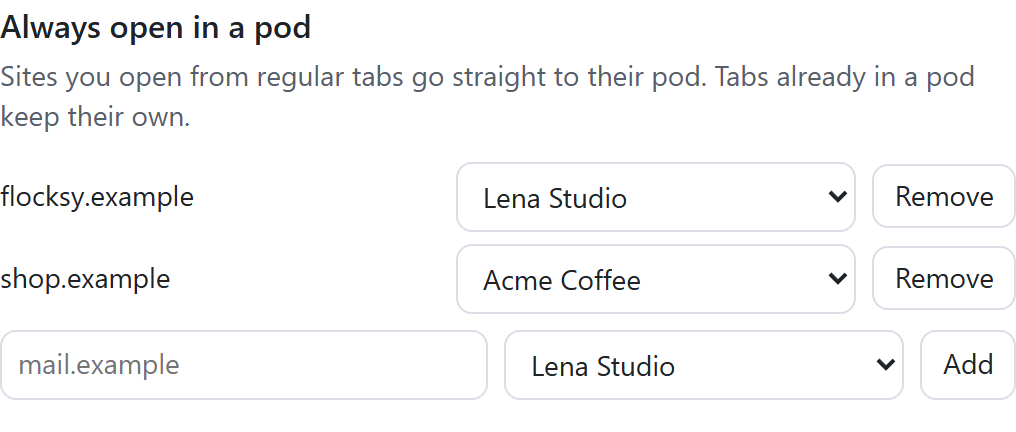
Tick one box and a site opens in its pod every time, even from a link in an email. Tabs already in another pod keep their own, so several accounts of the same site still live side by side.
The details
Every pod tab is grouped, named and colored, and the TabPods button shows the pod's initials.
Pods keep their logins when you close the browser and open it again.
Alt+Shift+P opens a new tab in the last pod you used. You can change it in the browser.
Clear a pod's logins in one click, or rename and recolor it whenever a client changes.
Cookies, local storage, IndexedDB and Cache Storage are kept apart for every pod.
Install it and create your first pod. There's nothing to sign up for.
Pricing
Every feature is in the free plan. Pro only lifts the limit on pods.
Launch price €9.99 for the first 60 days.
Privacy
TabPods has no servers and no account. Your pods live in your browser.
Each pod's cookies are stored inside your browser and only ever sent to the sites that set them.
No analytics in the extension or on this website. Nothing about you or the sites you use is collected, sold or shared.
With Pro, TabPods sends your license key to our payment provider, Lemon Squeezy, to activate it and check it once a week.
FAQ
To keep each pod's logins separate, TabPods gives the requests of a pod tab that pod's own cookies, on whatever site you use. It only changes tabs that are in a pod: your regular tabs work exactly as before. Nothing is sent to us; we have no servers.
The sites you sign in to in the usual way: social networks, email, marketplaces, admin panels and so on. One thing to know: inside a pod, sites run without their service worker, so a site's offline mode and push notifications only work in regular tabs.
A profile is a whole separate browser window, with its own bookmarks and extensions, and you switch between windows. Incognito gives you one extra session that is gone when you close it. Pods are tabs in the same window, as many as you need, and they stay signed in.
No. Install TabPods and create your first pod. Buying Pro only needs an email address, to send you the license key.
Yes: one license key works in up to 3 browsers. To move it, remove it in the TabPods settings of one browser and activate it in another.
Your pods and their logins are deleted with it, and you'll need to sign in again in each one. There's no export yet.
Yes, within 14 days of buying Pro, no questions asked. Reply to your receipt email or write to smnprn.dev@gmail.com.
Google Chrome and Microsoft Edge, version 121 or later. Firefox users already have Mozilla's Multi-Account Containers, which works in a similar way.